
Turn Google Photos into a photo book with your descriptions.
The descriptions you’ve written in Google Photos can become captions in your book. Export your photos with Google Takeout, keep their JSON metadata files, and import the extracted folder into PhotoBook.page.
Create a photo book from my folderPhotoBook.page matches descriptions locally in your browser. It doesn’t upload your selected photos or connect to your Google account.
A description becomes a caption.
PhotoBook.page looks for the description in a photo’s matching Takeout JSON file. That text follows the photo into the editor, where you can keep it or change it.
This example uses an illustrative caption. Your book uses the descriptions available in your own export.
A summer worth keeping.
01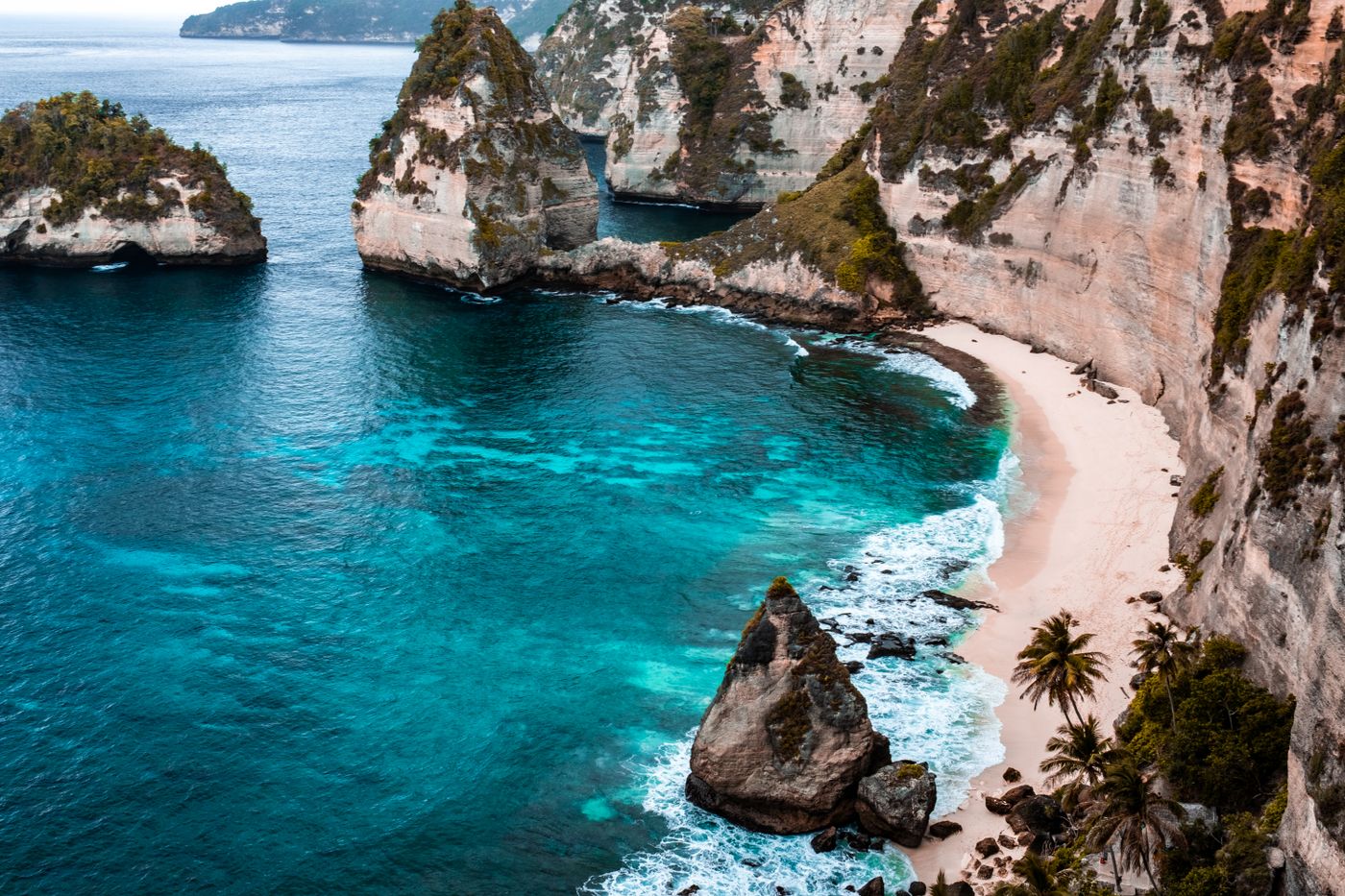
Salt in the air. Sand between our toes.
02“Salt in the air. Sand between our toes.”
Kept with the photo, ready for your book.Export your photos and descriptions
Select Google Photos
Open Google Takeout and sign in to Google. Choose Deselect all, then select Google Photos.
Choose your albums
Open the album-selection option to choose the albums you want, or keep all albums selected. Select Next step. Labels may vary as Google updates Takeout.
Create a one-time export
Choose Send download link via email, Export once, and .zip. Pick an archive size and select Create export.
Download and unzip every part
Google will email you when the export is ready. Download each archive part to your device and unzip it. PhotoBook.page imports extracted files, rather than ZIP archives.
Keep the JSON files
Keep each photo beside its metadata file. Names may look like
photo.jpg.jsonorphoto.jpg.supplemental-metadata.json. These files can contain the descriptions you added in Google Photos.Import the extracted folder
Return to PhotoBook.page and use Choose folder to select the extracted Google Photos folder or an album folder. Choose your date range and design, then open the book.
Check Google’s current instructions in the official Google data export guide. Exporting a copy does not delete the original photos from Google Photos.
Check your captions before exporting
Open a photo with a description you recognize and check its caption in the editor. Review the PDF too, especially after changing layouts.
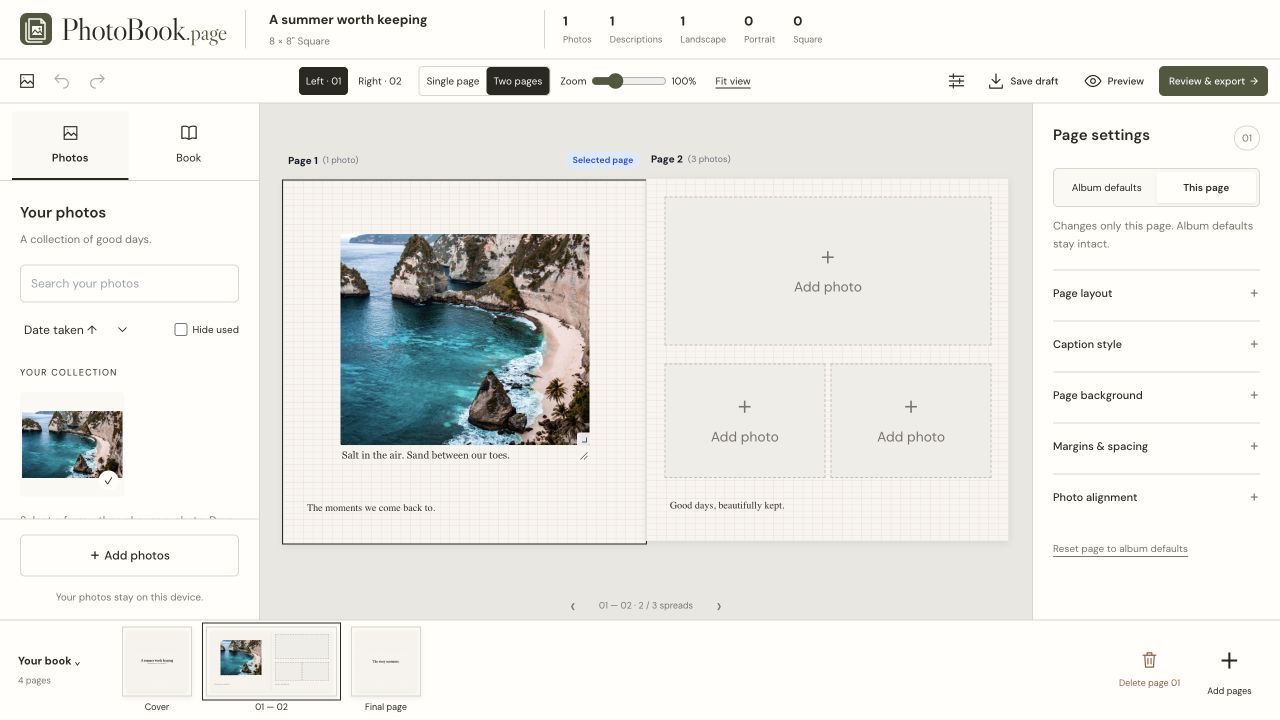
A caption needs more room
Longer descriptions can wrap across several lines. Check the whole caption after changing a layout; adjust the caption size or position, or edit the text, so it fits beside the photo. Review the downloaded PDF for clipping or overlap.
A description is missing
- Check that the description already exists in Google Photos. PhotoBook.page imports existing text; it does not generate missing descriptions.
- Make sure the matching JSON file is inside the folder you selected. Importing only the image leaves its Takeout metadata behind.
- Keep the original photo and JSON filenames. Renaming or missing metadata can prevent matching.
- If you downloaded multiple archive parts, check that you extracted all of them and included the relevant metadata.
The photo won’t open
Browser support varies by image format. If an image can’t be decoded, try a JPG or PNG copy and check that its metadata can still be matched.
You want to continue later
Use Save draft before refreshing or closing the page. The downloaded project contains your photos and edits; reopen it with Open draft file.
You want a printed book
Export your PDF and check your printer’s page-size, bleed, and binding requirements. Review the exported pages before ordering.
Add more of your story.
You can edit imported descriptions or write new captions for photos with no description. See how to make a book from ordinary photos and add your own text.
Keep the words with the photos.
Your Takeout folder is the starting point. Make the pages yours in PhotoBook.page.
Choose my photo folder