
Make a photo book with text and captions.
A date, a place, a little detail you don’t want to forget. Bring photos from your device, add your own words, and arrange them into a book you can export as a PDF.
Your selected photos are processed locally in your browser, on your device.
Keep the memory beside the photo.
Write a short caption for a family moment, tell the story of a travel day, or add the names and dates that make a keepsake meaningful.
Each photo has an editable description. You can also use Add text in the editor for a separate text block on the page.
The spread shown here is illustrative. Open the sample book to try editing captions yourself.
A summer worth keeping.
01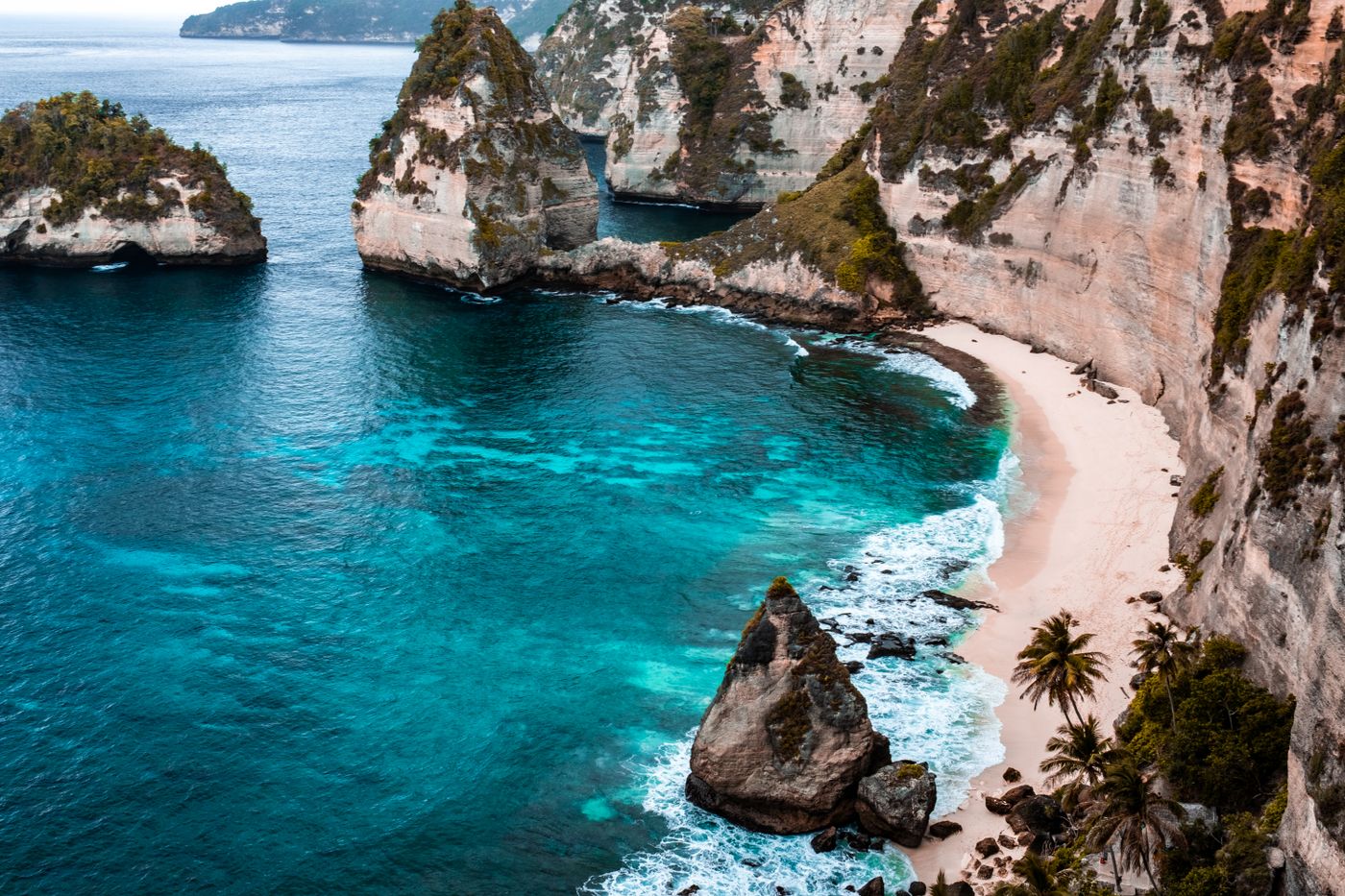
Salt in the air. Sand between our toes.
02“Salt in the air. Sand between our toes.”
Kept with the photo, ready for your book.From ordinary photos to a captioned PDF
Choose your photos
On the homepage, use Choose photos for individual files or Choose folder for a photo folder. JPG and PNG photos work without Google Takeout or JSON metadata.
Set up your book
Choose your date range, title, format, and design, then select Create my book. Check that all the photos you want are included.
Add captions and text
Click a photo’s description field to write or edit its caption. Use Add text for a separate text block. Adjust the text size and placement to suit the page.
Arrange and review
Adjust the photos and layouts, then check every caption. Longer text needs enough room: resize or reposition it, or shorten the wording, if it overlaps another element.
Save a draft or export your PDF
Use Save draft to download an editable project before closing the page. For a finished copy, choose Review & export, then Export PDF and Download PDF. Open the downloaded file and review the pages.
A few things to know before you start
Can I edit existing captions?
Yes. You can change a photo’s description in the editor or add one where the field is empty. With a Google Takeout import, matched descriptions give you a starting point.
Can I make a photo book with longer text?
Captions can wrap across multiple lines, and separate text blocks let you place more words on the page. Check the layout and exported PDF for clipping and overlap; the space available depends on your design and text size.
How do I keep an editable copy?
Download your project with Save draft. Reopen that file with Open draft file on the homepage. Save before refreshing or closing the page so you don’t lose unsaved edits.
Can I print my PDF?
Check the exported page dimensions and your printer’s requirements for bleed, binding, and individual pages versus combined spreads. PhotoBook.page exports PDFs; it doesn’t order or ship printed books.
Already wrote descriptions in Google Photos?
Bring those words along with a Google Takeout export. Keep the photos and their matching JSON files together, then check the imported captions.
Give your photos a few words to keep.
Start with your pictures. Make the story yours.
Start my photo book