
Google Photos Captions: Descriptions vs. Album Text and Comments
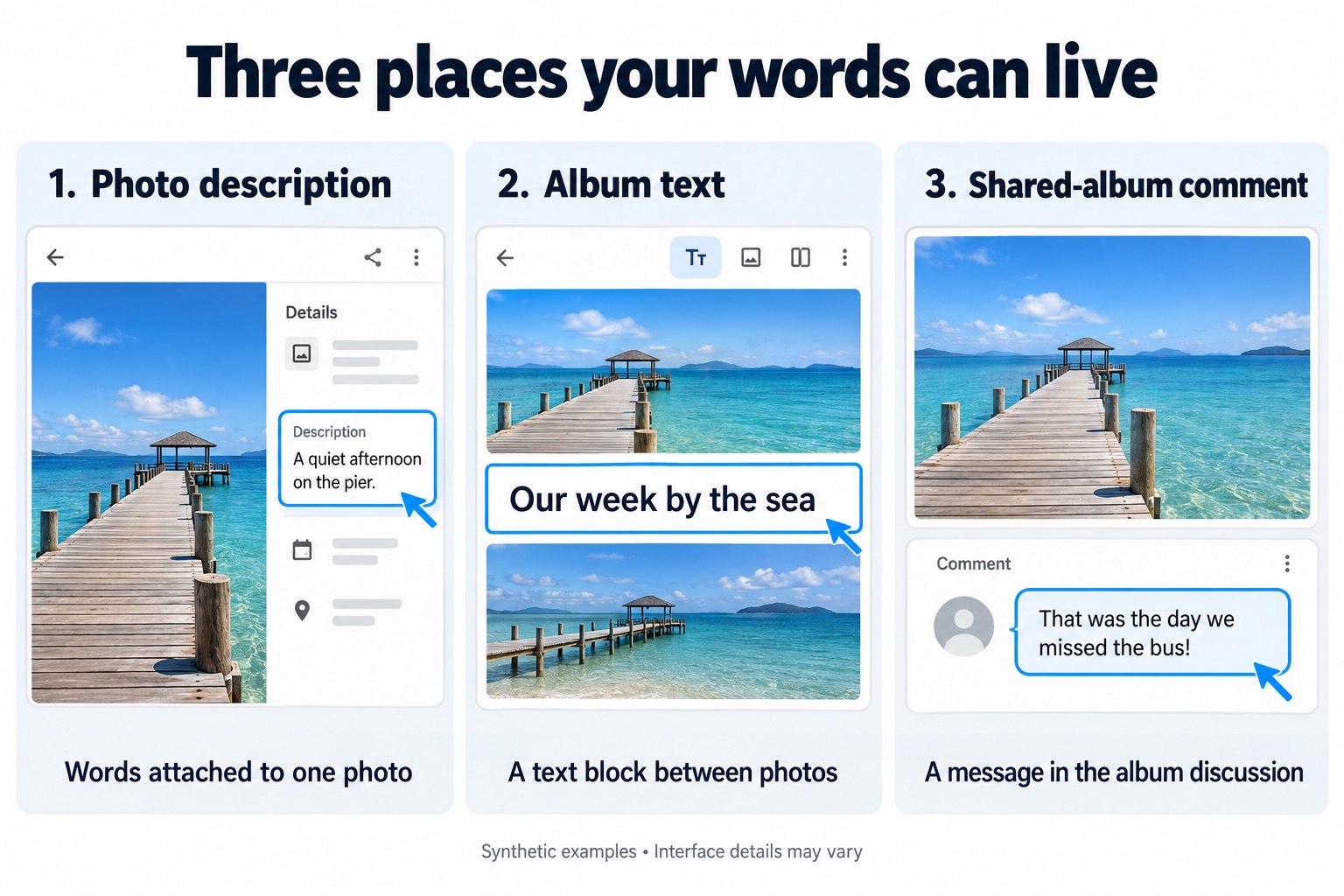
Which Google Photos captions transfer to a photo book? The answer depends on where you wrote the words: in a photo’s description, in an album text block, or in a shared-album comment.
If you remember writing names, places, or stories but cannot find them in your book, check the text type before exporting the album again.
PhotoBook.page can match a photo with its Google Takeout JSON file and use the available description as an editable caption. It does not automatically turn album text blocks or shared-album comments into captions.
Here is how to work out what you have, what to check, and which words you may need to add yourself.
Three kinds of text that can look like captions
| Type of text | What it belongs to | What to do when making your book |
|---|---|---|
| Photo description | One photo, rather than a position between photos in an album | Check whether the matching Takeout JSON contains the description. PhotoBook.page can use available matched descriptions as captions. |
| Album text block | A text item in an album, such as an introduction between groups of pictures | Keep a separate copy of the wording. Recreate it as page text or rewrite it as individual captions. |
| Shared-album comment | A contribution to the album’s discussion or activity | Choose which details belong in the book and copy or rewrite them yourself. |
The distinction matters because words shown near a photograph are not necessarily stored as that photograph’s description.
Google’s own documentation treats media-item descriptions, editable album text, and comments as separate features. See its references for photo descriptions, album text, and comments and likes.
How to identify the words you want to keep
Choose one photo whose story you recognize, then locate the original text in Google Photos.
If the wording belongs to the individual photo’s details, investigate it as a photo description or caption. If it appears as a separate block while you arrange the album, treat it as album text. If it is part of a conversation with other people, treat it as a comment.
Labels can vary by device. Google’s current Android help describes opening a photo, using More or swiping up to view its details, and choosing Add a caption. That interface label alone is not proof of how the text will appear in your particular export. Check the exported data and the resulting book. Google Photos caption instructions.
Example: turn three kinds of holiday text into a book
Imagine a family holiday album contains:
- A photo description: “Maya and Grandad on the pier, Whitby, July 2025.”
- An album text block: “Our first week away together.”
- A comment: “That was the day we missed the bus!”
These are illustrative examples, not a customer story. Here is one way to use them:
Introduce the trip with page text. Copy “Our first week away together” into a separate text block at the start of the holiday pages.
Keep the photo’s own caption. If the matching Takeout JSON contains “Maya and Grandad on the pier, Whitby, July 2025” as its description, keep that caption beside the pier photo. Check the names, place, and date after import.
Turn a useful comment into context. If you want to preserve the missed-bus memory, manually edit the caption to read: “Maya and Grandad on the pier, Whitby, July 2025. The day we missed the bus and stayed for another ice cream.” Only add that last detail if it is true; the example shows an editorial choice, not an automatic transfer.
That gives each kind of text a job: an introduction for the pages, a caption for the photo, and a remembered detail you choose to include.
Why keeping the JSON files matters
An image and the words added around it in a photo service can be separate pieces of data.
Google says additional metadata that was not part of the original file, including comments within Google Photos, is downloaded into a secondary JSON file. The importing app still needs to support the relevant field. Google’s data download guide.
PhotoBook.page looks for a matching photo metadata file and reads its available description. Keep the photos and their accompanying JSON files together in the extracted folder. If you select only the images, the importer cannot read descriptions from JSON files you left behind.
For the export and folder-import steps, follow our Google Photos to photo book guide.
Check one caption before arranging the whole book
Start with a small set of photos rather than discovering a text mismatch after you have arranged dozens of pages.
- Pick a photo with a description you can recognize.
- Keep its matching JSON file in the extracted folder you import.
- Open the book and find that photo’s editable caption.
- Compare the wording with the description you expected.
- Export a PDF and check that the intended words appear beside the correct photo.
If the caption is empty, first check the type of text you wrote. Was it an individual description, an album text block, or a comment?
If it was a description, check that the relevant JSON file was included and that its description is present. Avoid editing your only copy of the export. Keep the original archive and work from an extracted copy.
If the files are present but the caption is still empty, use the missing-description checklist in our import guide. Keep a separate copy of important wording while you investigate.
What a description import looks like
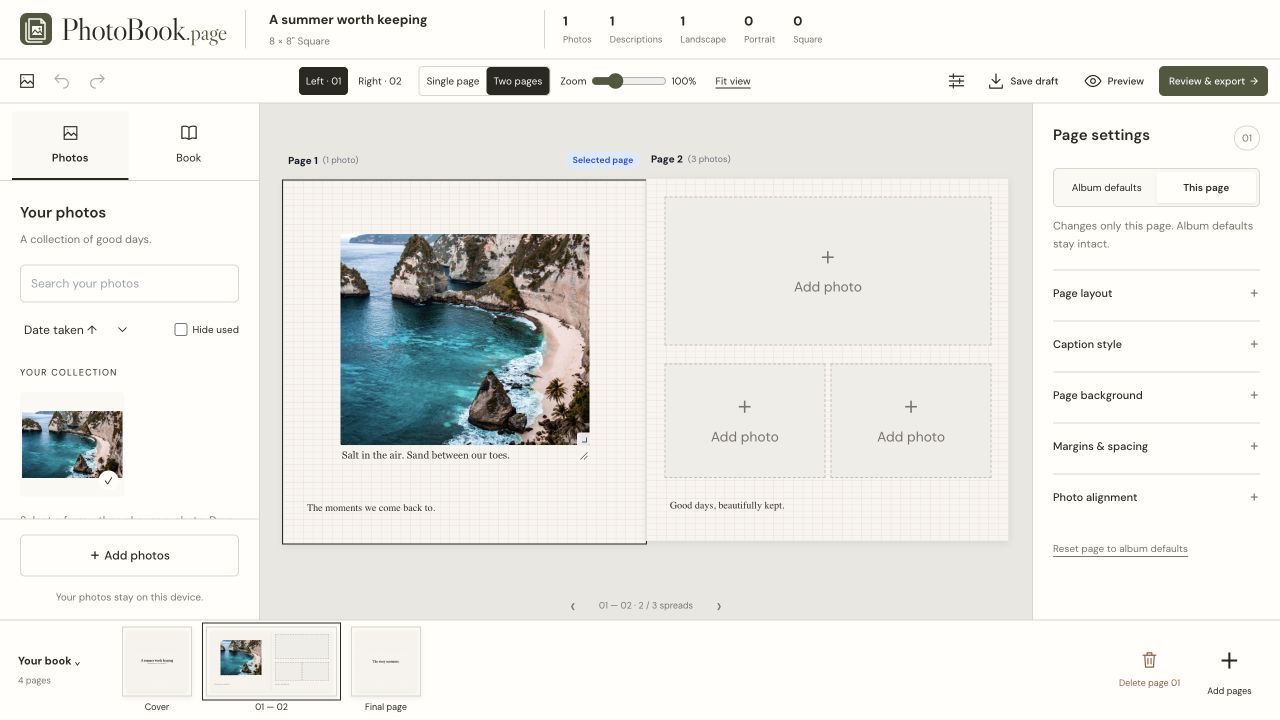
You can keep an imported caption, shorten it, or add context. For manually recreated album text, use a separate page text block. Our photo book with text guide explains both options.
When using someone else’s personal comment, ask before including their words in a book you plan to share, and attribute a quote when that helps tell the story.
Save an editable copy as well as your PDF
Once the right words are in place, arrange the layouts and review the finished pages.
Use Save draft to download a portable project file before closing or refreshing the editor. You can reopen it with Open draft file to continue editing. Export a PDF for the finished book, and review that downloaded file too.
Your selected photos are processed locally in your browser. You can edit the captions and layouts before saving the draft or exporting the PDF.
Ready to try one photo and its story? Start your photo book. Bring an extracted Takeout folder if you want to match available descriptions, or start with ordinary photos and write the captions yourself.
Common questions
Why might the words be in Google Photos but missing from my book?
First locate the original text. Then check the matching metadata file and the imported caption. If the words belong to an album text block or discussion, use the manual approach in the holiday example above.
Can I change an imported description?
Yes. It becomes an editable caption in PhotoBook.page. You can shorten it, add context, or replace it while preparing the book.
Can I preserve album text without automatic import?
Yes, manually. Keep a copy of the wording and add it as page text or captions.